

You want to learn Claude Code. But the course has 136 lessons across 16 phases. That’s a lot of reading. You know the drill — you’ll open it, skim the first few pages, then close the tab and never come back.
What if you didn’t have to read any of it? What if Claude could read the course for you and teach you through conversation?
That’s exactly what Claude Desktop’s Project Knowledge feature lets you do. No terminal. No git. No coding. Just upload the course files, ask questions, and learn at your own pace.
What Is Project Knowledge?
Claude Desktop (the app, not the API) has a feature called Projects. Each project has a Project Knowledge section where you can upload documents. Once uploaded, Claude uses those documents as context for every conversation in that project.
Think of it as giving Claude a textbook. It reads the whole thing, remembers everything, and you can quiz it, ask for explanations, or request summaries whenever you want.
This is perfect for learning Claude Code because:
- You don’t need to install anything on your machine
- You don’t need to know git or the terminal
- You can learn through Q&A, which is more engaging than reading
- Claude connects concepts across lessons automatically
If you’re a PM, designer, or developer who’s new to AI coding tools — this is the easiest way to get started.
Step-by-Step Setup
Step 1: Download the Course
Go to the Claude Code Mastery repo on GitHub.
Click the green “Code” button, then click “Download ZIP”.
No git account needed. No terminal. Just a regular file download.
Step 2: Unzip
Find the downloaded ZIP file (probably in your Downloads folder) and unzip it. You’ll get a folder called claude-code-mastery-main with all the course content inside.
Step 3: Create a Project in Claude Desktop
Open Claude Desktop. Click “New Project” — you’ll see this dialog:
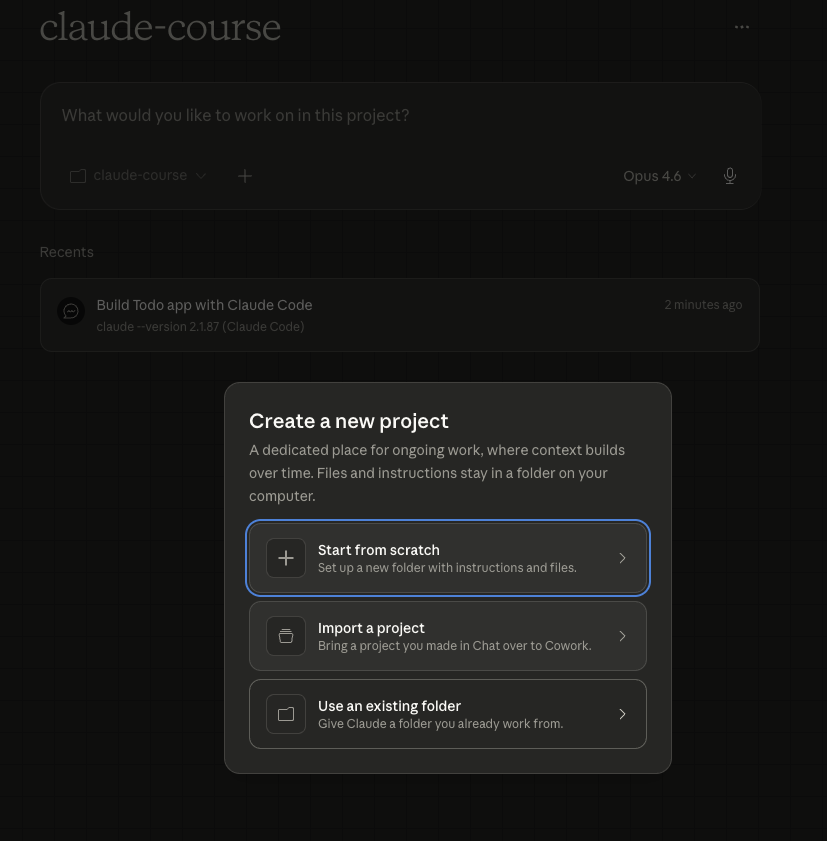
Select “Use an existing folder” — this lets Claude read the course files directly from your computer.
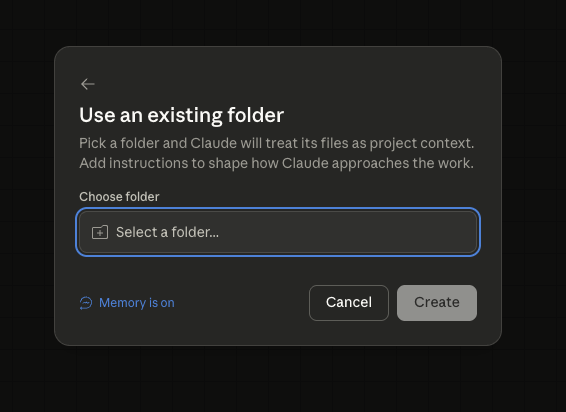
Step 4: Point to the Course Folder
In the folder picker, navigate to the unzipped course folder (e.g. claude-code-mastery-main):
After selecting, you’ll see the project setup screen. Name it “claude-course” and — this is the important part — paste the mega prompt from Step 5 into the Instructions field:
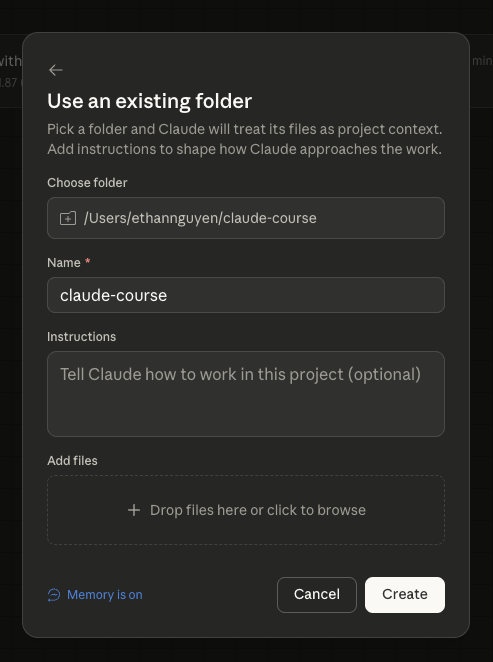
The “Add files” section lets you drag additional files. Start by adding COURSE-INDEX.md from the root folder, then the 4 .md files from phase-01-foundation/. Add more phases as you progress.
Click “Create” and you’re ready.
Step 5: Paste This Prompt and Start Building
Here’s the key — don’t ask Claude generic questions. Instead, copy-paste the prompt below into Project Instructions (or as your first message). This turns Claude into a hands-on mentor that teaches you by building a real app:
You are my Claude Code mentor. I uploaded the Claude Code Mastery course(read COURSE-INDEX.md first to understand the full structure).
YOUR JOB: Teach me Claude Code by guiding me to BUILD a real Todo appfrom scratch. Don't give me a learning path. Don't summarize lessons.Don't lecture me. Instead: give me ONE small task at a time, I do it,you check, then next task.
RULES:1. Every task must be something I DO in Claude Code (type a command,   write a prompt, edit a file). Never just explain theory.2. After each task, tell me WHAT I just learned and WHICH lesson from   the course covers it (cite the phase + module name from COURSE-INDEX.md).3. Start EASY. First task = install Claude Code. Then gradually harder.4. If I get stuck, give me the exact command to type.5. Keep responses SHORT. Max 10 lines unless I ask for more.6. After every 5 tasks, give me a scorecard: what I've learned, what's next.7. The Todo app: HTML + CSS + vanilla JS. No frameworks. Keep it simple.8. By the end I should have: a working Todo app with add/delete/complete,   AND know how to use Claude Code for my own projects.
START by asking what OS I'm using, then give me the install command.Wait for my response before giving the next task.
Type “Let’s start” and follow along. Claude will walk you through ~25 tasks, from installing Claude Code to deploying a finished Todo app. Each task takes 2-5 minutes. By the end, you’ll have a working app AND know Claude Code.
What Happens Next
You don’t need to plan anything. Claude handles the progression:
- Tasks 1-3: Install Claude Code, run your first command, create a project folder
- Tasks 4-12: Build the HTML and CSS using Claude Code — you’ll learn prompting along the way
- Tasks 13-22: Add JavaScript, learn multi-file editing, debugging, and refactoring
- Tasks 23-25: Add persistence, polish, and deploy
After each task, Claude tells you which course lesson you just practiced — so you’re learning without reading a single page. If you want to dive deeper into any topic, just ask.
Bonus: Works With Other AI Tools Too
This approach isn’t locked to Claude Desktop. Any AI tool that lets you upload documents works:
- Gemini (Google AI Studio) — upload files to a conversation
- ChatGPT — use file upload in the chat
The course files are plain Markdown. They work everywhere. Claude Desktop’s Project Knowledge is just the smoothest experience because the files persist across conversations — you don’t re-upload every time.
Who Is This For?
This setup is ideal for:
- Non-developers (PMs, designers, founders) who want to understand what Claude Code can do without learning the terminal first
- New developers who prefer guided, conversational learning over reading documentation
- Experienced developers who want a quick way to explore what’s in the course before diving deeper
- Teams where a lead can set up one project and share key takeaways with the group
You don’t need to be technical. You don’t need to install anything except Claude Desktop. And you can start learning in under 5 minutes.
Get Started
- Download the course — click “Code” → “Download ZIP”
- Create a project in Claude Desktop called “Learn Claude Code”
- Upload
COURSE-INDEX.md+ Phase 1 files to Project Knowledge - Paste the mega prompt from Step 5 above into Project Instructions
- Type “Let’s start” and build your first app with Claude Code
If you’re more technical and prefer to use Claude Code directly, check out our companion guide: Turn 136 Lessons Into a Personal AI Mentor — it covers the git clone + CLAUDE.md approach.
Star the repo on GitHub if you find the course useful. It helps other learners discover it.